
Many people have multiple Google Drive accounts – say, for work and personal use – but Google doesn’t let you run two instances of Google Backup and Sync app on a single PC. Therefore, users have been paying for third-party apps just to sync multiple Google Drive accounts simultaneously.
However, in my view, paying for a feature that should have been offered by Google years ago (like Dropbox) doesn’t feel right. And so, after many experiments, I have managed to come up with simple solutions that allow you to sync multiple accounts simultaneously without using a third-party app. Let’s get straight to it.
Installing Multiple Instances of Google Drive on Mac (Without 3rd Party Apps)
Google Drive is one of the best cloud storage systems you'll find on the Internet. You use it...Read more
Use different user account
You just need to create another user account in Windows and open another instance of Google Drive desktop app under the new account’s privileges.
Windows allows you to open another instance of most apps in the same account as long as it’s opened under the privilege of a different user account.
Below I’ll show you how to create a new user account and then open another instance of Google Drive and syncs data.
For demonstration, I’ll be using Windows 10. If you are on Windows 7 or 8, then follow these instructions on Microsoft support page instead. Make sure you create an administrator account so you may have full access to the data.
- Go to Windows Settings from the Start Menu and click on Accounts.
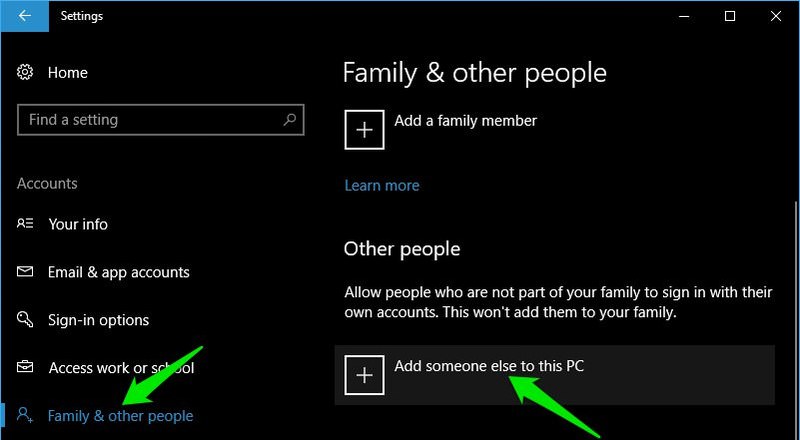
- Now select Family & other people from the left panel and click on Add someone else to this PC under Other people.
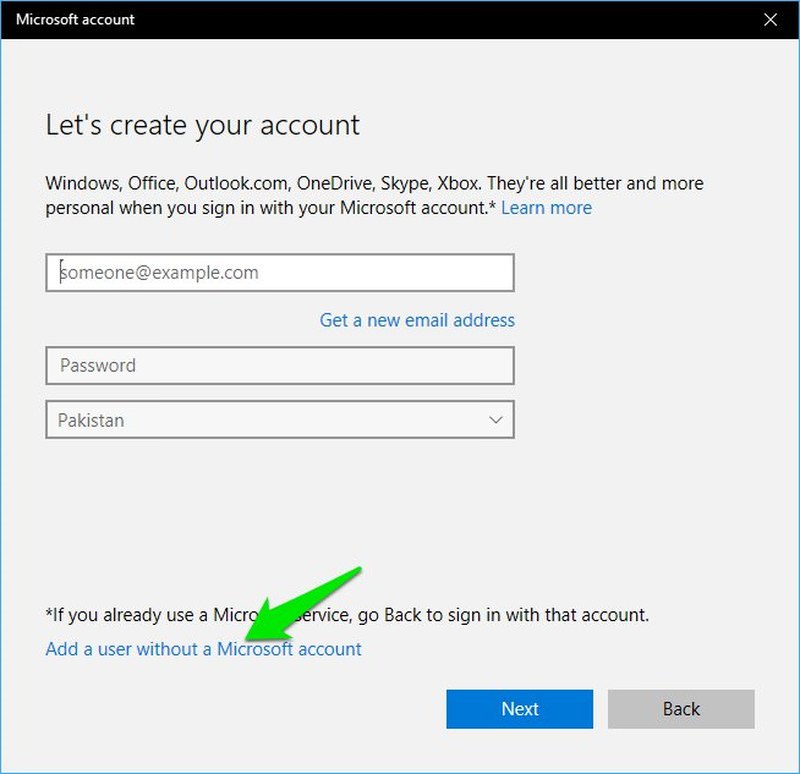
- Another window will open up where you click on I don’t have this person’s sign-in information.
- Afterward, click on Add a user without a Microsoft account.
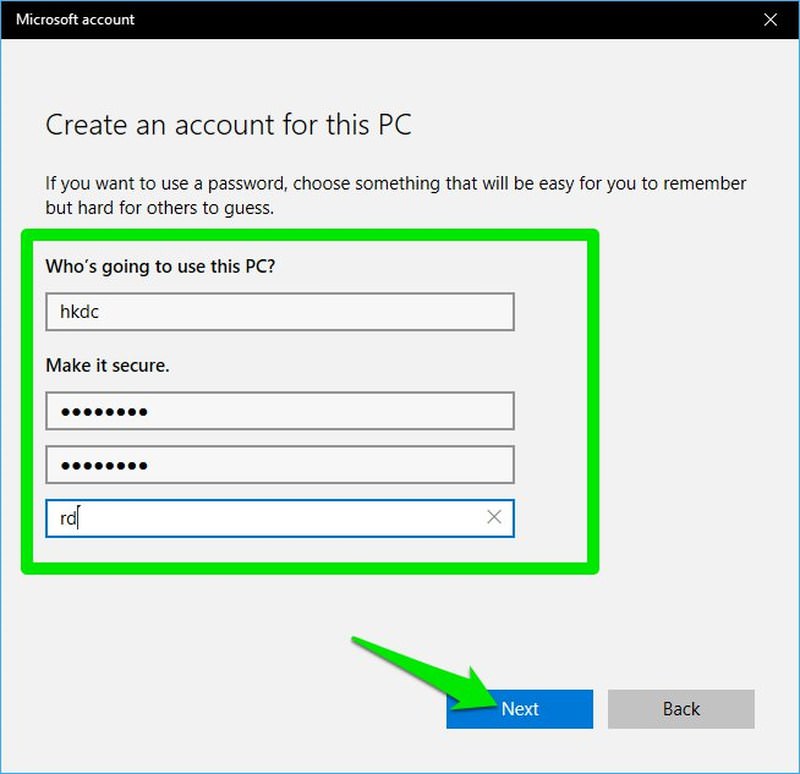
- On the next page, provide username and password for the new account and click Next to create the account.
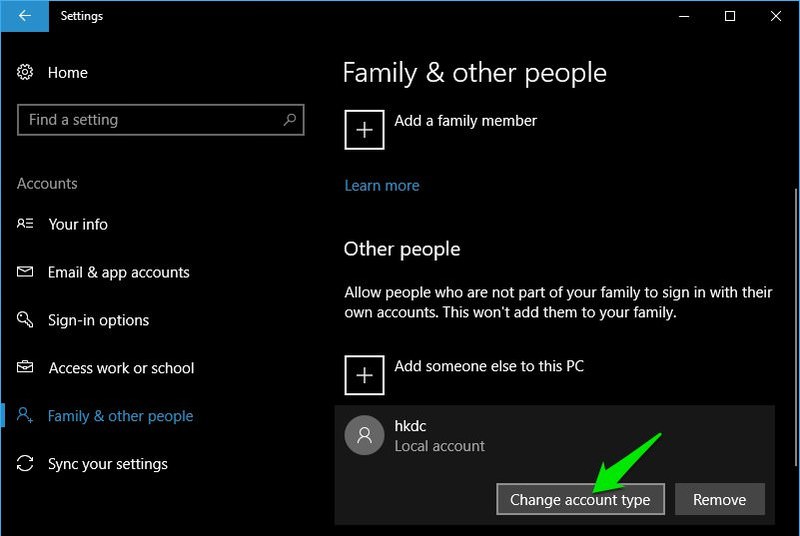
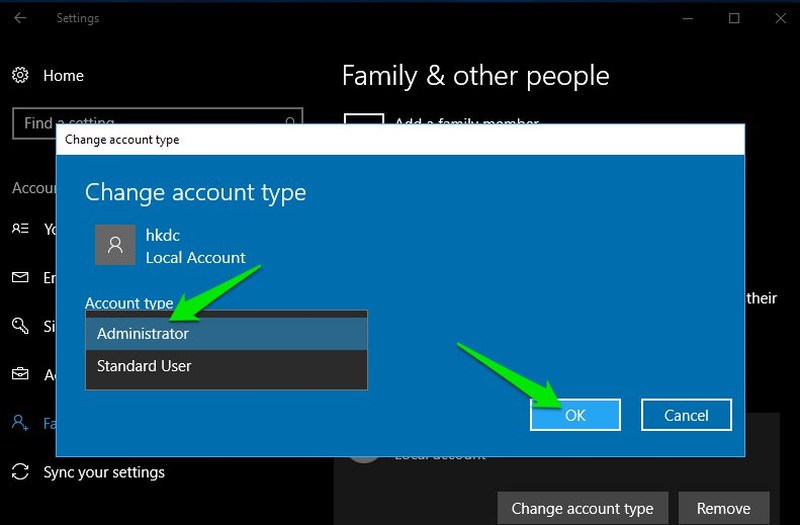
- To set this account as administrator, click on Change account type below the created account.
- Now select Administrator in the Account type drop-down menu and click OK.

Run another instance of Google Drive desktop app
If Google Drive isn’t open already, then launch it and sign in with your primary account. You can only open another instance of Google Drive from the Google Drive execute file in the file explorer. Either manually access it from the Program files, or right-click on the Google Drive Start menu shortcut and select Open file location in More option. Afterward, follow the below instructions.
- Hold the Shift key and right-click on the Google Drive app shortcut.
- You’ll see a new option in context menu named Run as different use